
Choose the moment
Start with an encounter, arrival, journey, discovery or pause. The scene choices supply prepared openings and actions rather than interpreting a free-form campaign brief.
Give the next scene words worth hearing
A stranger at the waterfront. A road into the unknown. A moment that invites a choice. Prepare read-aloud prose, adapt the passage to your adventure and keep the words you want to use.
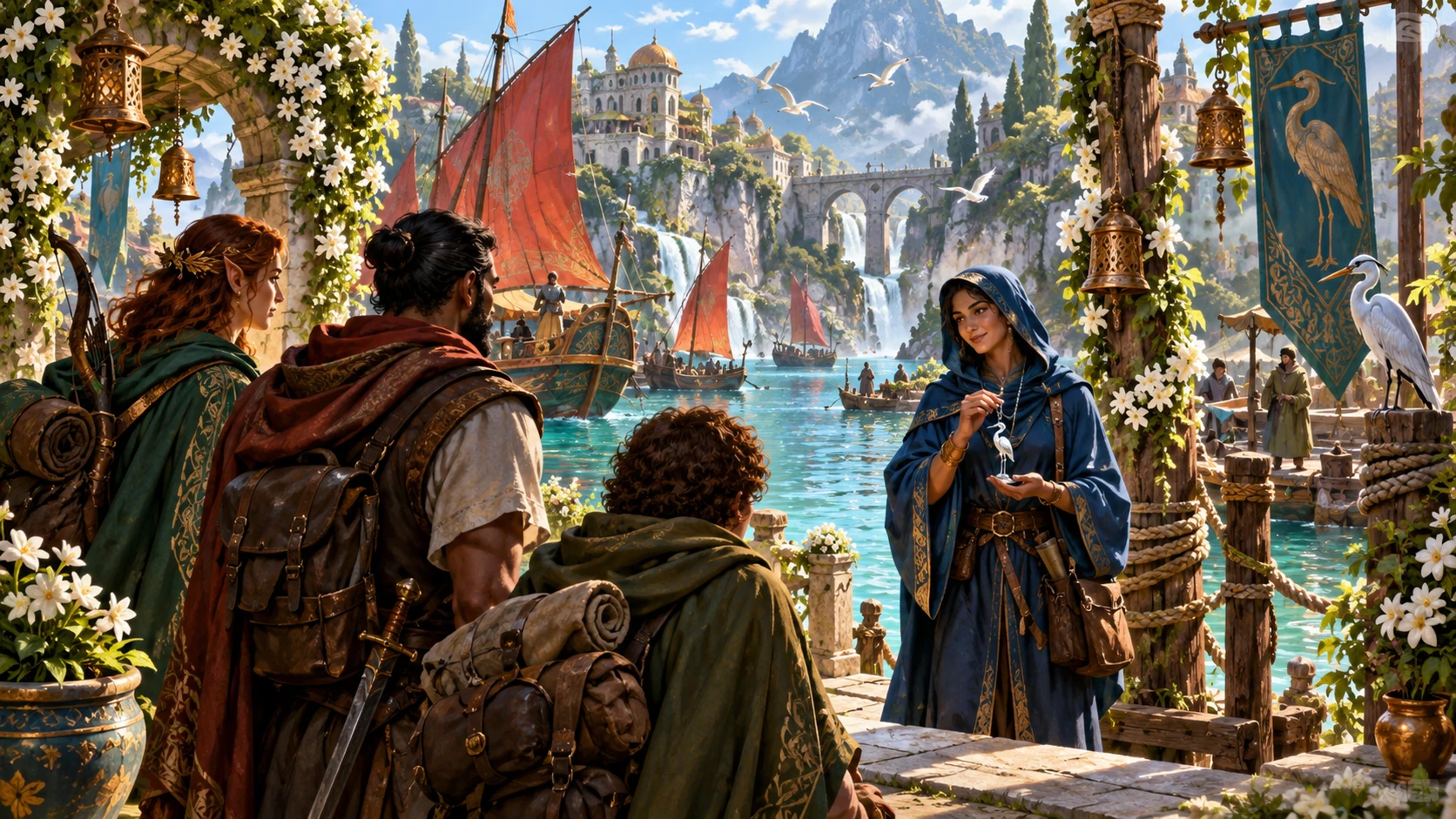
Open a moment at the table
Select a kind of scene, find a useful passage and make it fit your adventure.
Start with an encounter, arrival, journey, discovery or pause. The scene choices supply prepared openings and actions rather than interpreting a free-form campaign brief.
Use a short introduction or a longer passage. Review mood, time and conditions in the lengths that include them.
Edit the read-aloud field for the names, locations and facts your players can know. Generated text does not verify campaign continuity.
Copy the edited text or Save explicitly on this device. A seed is shown for reference; it is not an interface control for restoring a passage.
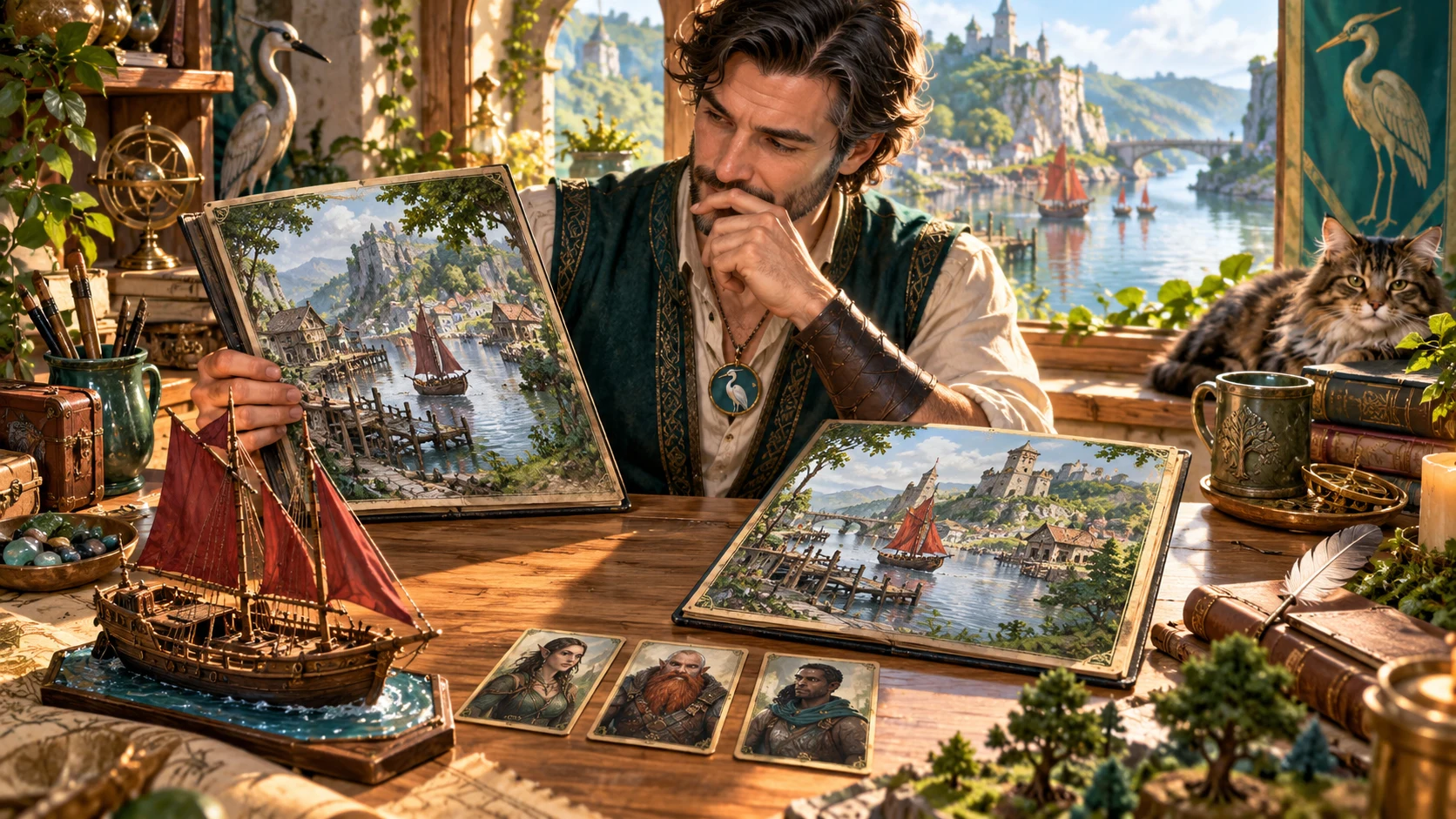
Choose what belongs in the scene
The illustration shows a storyteller comparing waterfront scene paintings beside a model sailing boat. Decide which details the characters can notice and which information belongs in your private notes.
Choose a scene and length, then adapt the generated passage. The tool creates text; it does not analyse these pictures or generate the artwork.
From a scene choice to a table introduction
Review the passage before it becomes part of your adventure.
Select the moment and the amount of prose you need. The narration generates as controls change; those changes replace typing edits.
Check names, atmosphere, information and continuity. The prepared prose is a starting point, not knowledge of your campaign.
Reroll for another draw or keep selected generated paragraphs. Typing edits are separate from the paragraphs used by locks; copy or save them first.
Copy read-aloud text, include the separate DM note for your own notes, or create an explicit local saved entry.
What the current tool provides
Scene choices, revisions and local saves support your preparation.
Choose combat, travel, settlements, shops, NPC encounters, dungeons, wilderness, magic, law, intrigue, downtime, construction or world change. Each scene type draws from its own prepared prose.
Choose a one-line, short, medium, long or cinematic result. Longer choices add more structure and paragraphs. Retained paragraph content can make a later shorter choice remain longer.
Select tone and time of day, then indoor or outdoor conditions and weather. Their effects depend on the passage length; the one-line result uses only a scene opening.
Sound and Balanced choices add sound detail in medium and longer passages. Visual, Smell and Physical currently share the same non-sound treatment. Review and add the sensory detail your scene needs.
Use Keep on reroll for a multi-paragraph generated result. Selected paragraph positions retain their prior generated text while the rest draws again. Check continuity when scene choices change.
Edit the read-aloud field, then copy that text alone or with the separate DM note. Typing edits does not update the generated paragraph list used by locks; copy or save edits before another generation.
Save the current text on this device, then open or delete saved entries. Each Save creates a new entry. Local saves are separate from an account cloud library and are not automatically synchronised.
See recent generated passages in This session and use Start here or How do I for guidance. History is temporary and shows generated text, rather than a restorable archive of your authored edits.
Choose the shape of the passage
Narrative Generator has one scene workflow with length choices, rather than separate Quick and Deep modes.
One line uses a scene opening. Short adds time and tone. Weather, environment and sound choices do not all affect these shorter results.
Longer passages add actions and atmosphere. Long and Cinematic provide multiple paragraphs that can expose Keep on reroll controls.
Outdoor weather appears in medium and longer passages. Sound and Balanced add sound detail; the other senses currently share the same non-sound treatment.
Reroll selects a new random seed. Exact replay depends on complete choices and retained content; there is no seed-entry control in the current interface.
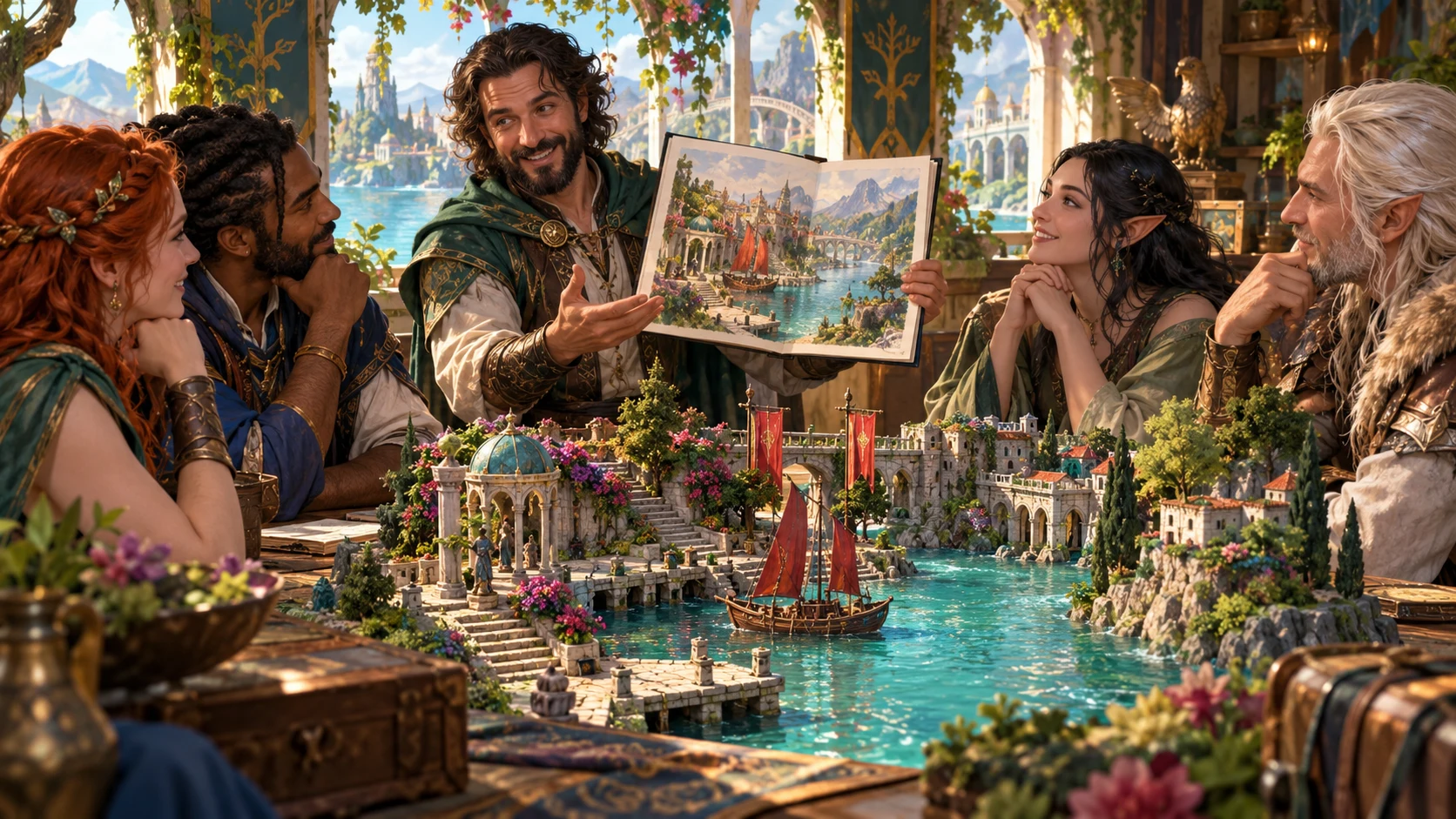
Bring the reviewed words to the group
The illustration shows a storyteller sharing a waterfront scene painting around a tabletop harbour model. Use the passage to establish what the characters can perceive, then leave space for their questions and decisions.
Copy the edited read-aloud text into your session notes or keep a local saved passage. Private information typed into the narration is not automatically filtered.
Keep a paragraph with care
Paragraph positions and typing edits are separate parts of the workflow.
Tick Keep on reroll for the paragraph positions you want to retain. The retained source is the generated passage, not your current typing edits.
Locks remain when you change controls. Earlier scene details and trailing paragraphs can remain, even when the fresh result is shorter. Clear unwanted locks.
Copy or Save before rerolling or changing controls. Typing edits do not refresh the generated paragraph list or session-history snippets.
Open restores its result and narration, not scene controls or lock selections. An edited save can retain older generated paragraph fields; review boundaries before locking again.
Keep the introduction true to your table
A useful passage needs the knowledge, tone and continuity of your adventure.
There is no free-form campaign input or automatic continuity check. Add the actual people, places and unresolved events you want to establish.
Sound and Balanced add sound detail where the length allows it. Visual, Smell and Physical do not each add a distinct treatment. Add specific sensory details yourself.
The current note offers general guidance. Its native stakes, pacing, threat, emotion, NPC and continuity fields are not exposed as editable controls in this interface.
Copy read-aloud omits the separate DM note. It does not filter private information within the editable narration; read the actual text before using it.
Choose access for your toolkit
Begin with a free VISINVOKE account, then review the required selection and subscription.
Select Narrative Generator individually. Creating a free account does not by itself include paid generator access.
Choose five eligible standalone generators. Review tools and terms in your account; a selection pack does not include every VISINVOKE product.
Choose more capacity when it suits your toolkit. Review actual tools and reselection terms before changing your subscription.
The current native tool stores saved passages on the device. Connected products have their own access; the links do not include automatic text transfer or cloud synchronisation.

Each Save creates a new local entry. Your edited narration is stored alongside the generated result; there is no autosave or cloud synchronisation.
Saved lists the stored passages. Open restores text without restoring every scene choice or lock. Delete removes that local saved entry.
Copy read-aloud uses the edited text alone. Copy with DM note includes the separate guidance for your notes. Neither option filters secrets inside the narration.
There is no dedicated file export/import or saved-version browser in this interface. Copy important passages into your own session notes. This session shows temporary generated snippets.
Changing controls generates again and replaces typing edits. Copy or explicitly Save the passage you want to keep before another draw.
Build your tabletop toolkit
Each card opens its own public website. Review purpose and access separately; links do not promise included access or automatic synchronisation.
Discover and open your supported Windows products through one connected VISINVOKE account.
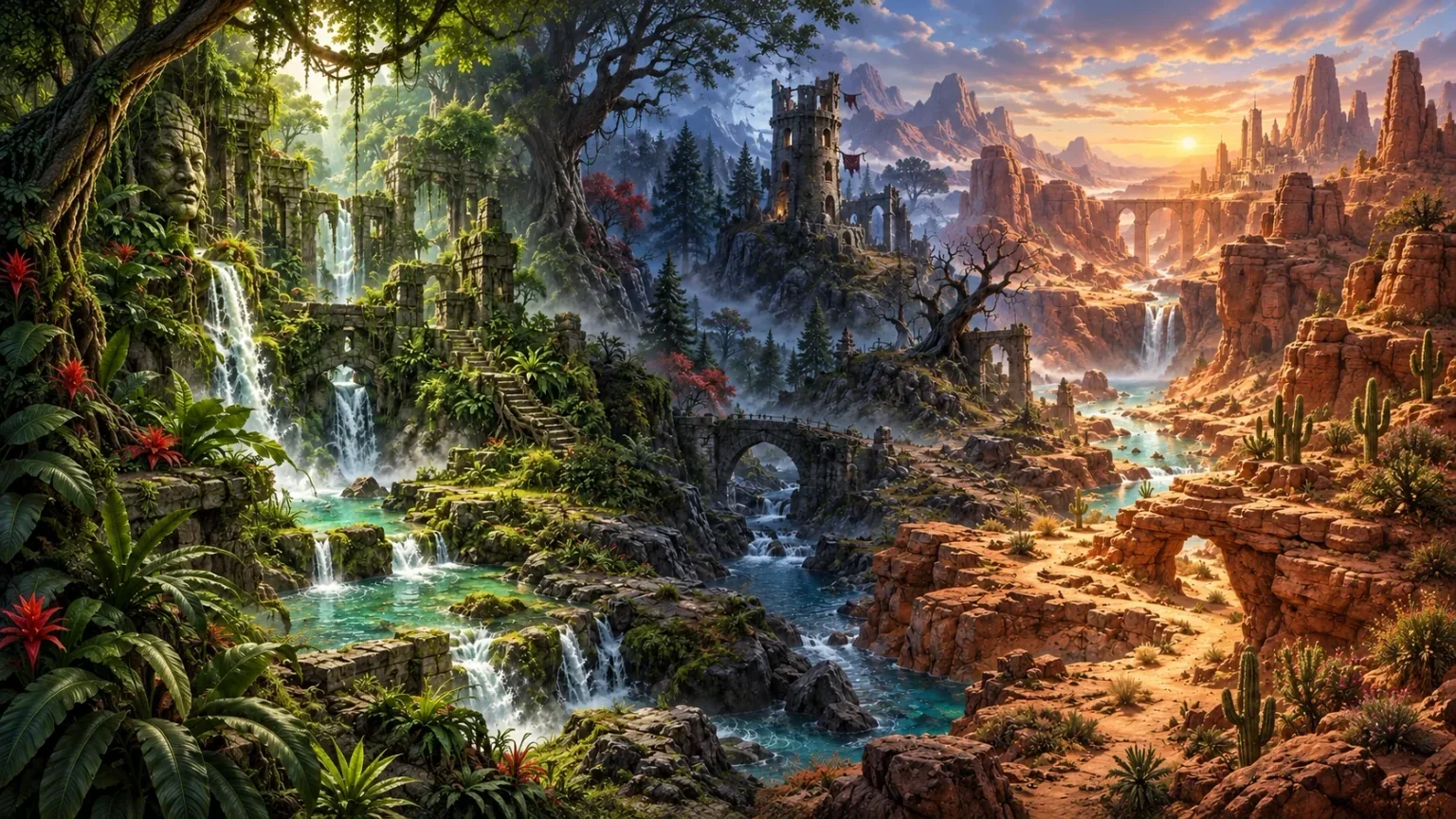
Explore environment packs for tactical locations and the places your encounters unfold.
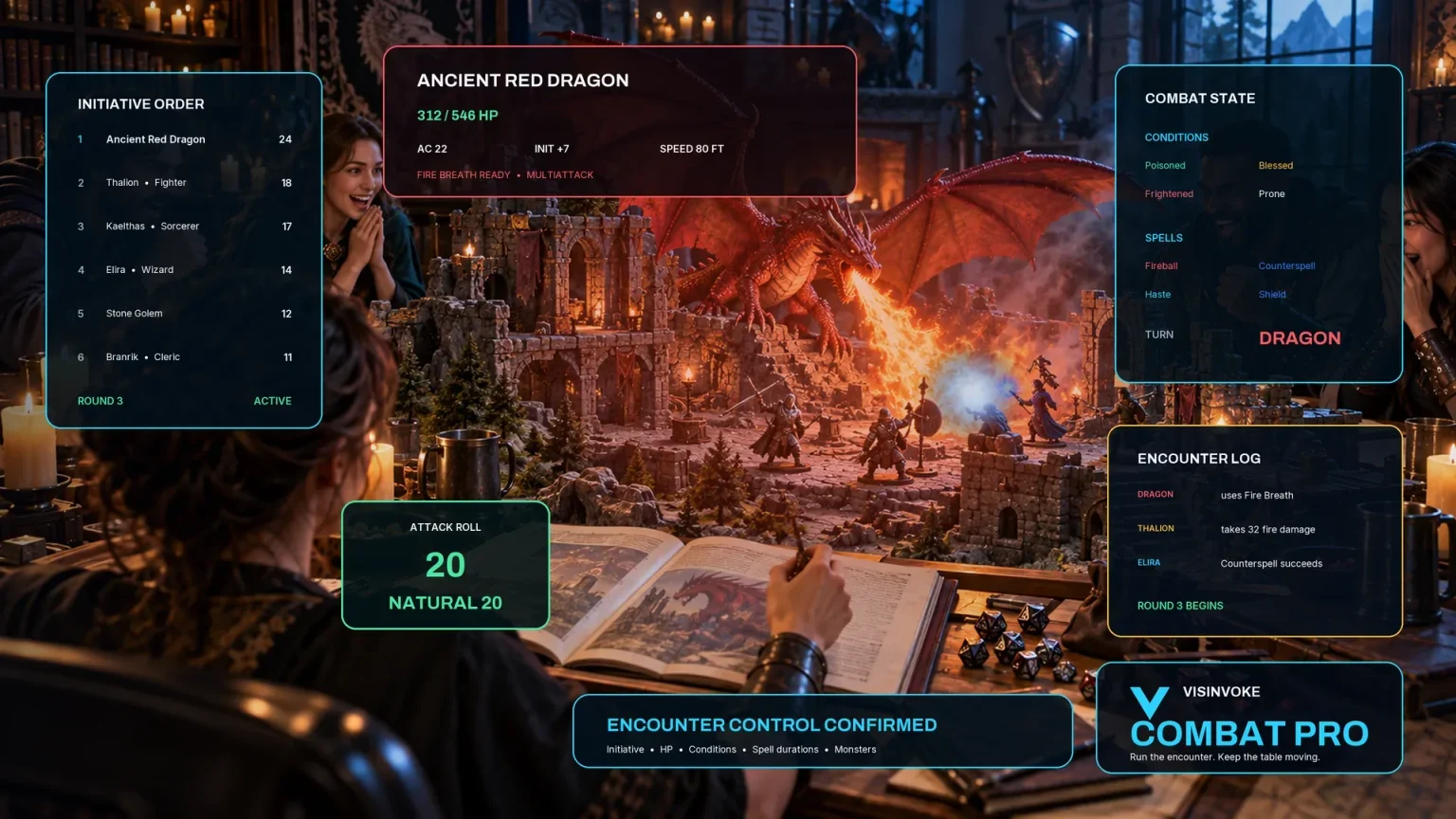
Review prepared opposition, tune creature statistics and run tabletop encounters with its own access.
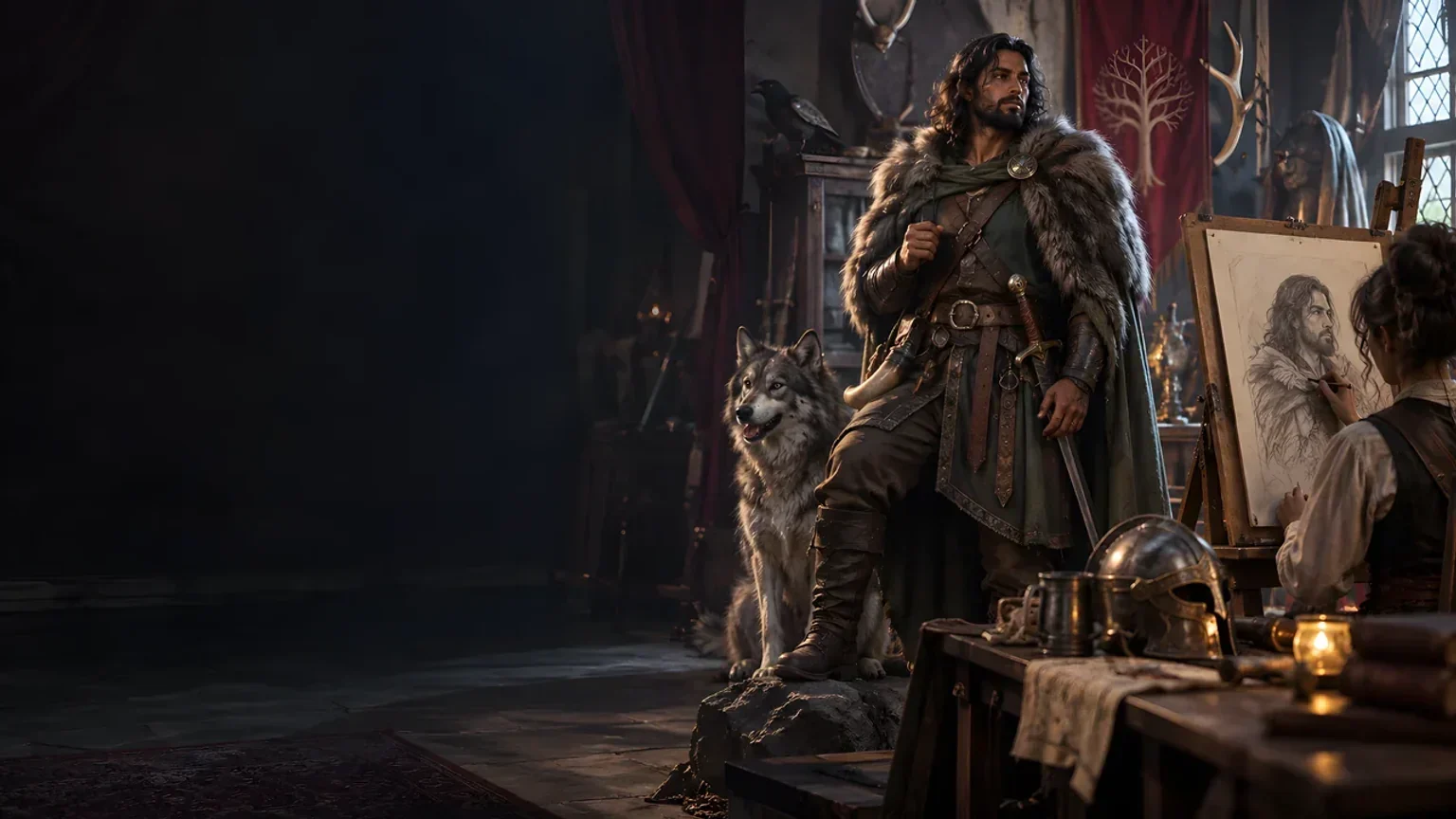
Create focused character, monster, item and location images to complement your tabletop preparation.
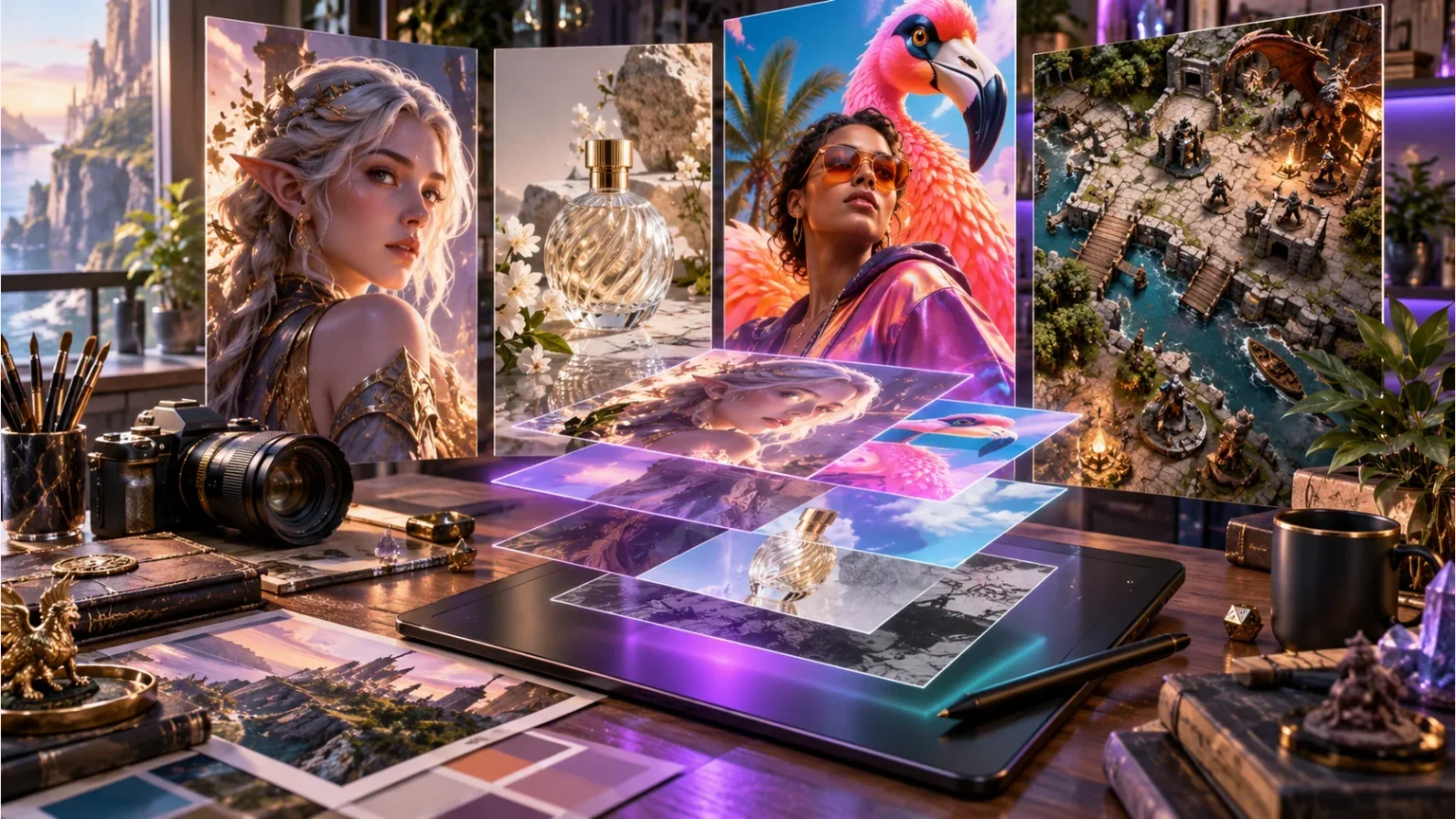
Create guided commercial visuals for websites, brochures and wider creative projects.
Explore a separate futuristic RPG experience with its own world, characters and progression.
Product artwork illustrates storytelling and scene preparation, not application screens or actual generated image output.
Quick answers
Understand the current workflow before opening the tool.
It assembles read-aloud scene prose from prepared scene and descriptive choices. Choose a scene type and length, then review the result for your adventure. It does not accept a free-form campaign brief, infer continuity, generate images or maps, or run a live encounter. The artwork illustrates storytelling and scene preparation, not application screens or actual generated image output.
Their effects depend on the chosen length. One line uses a scene opening; Short adds time and tone. Medium and longer passages can add outdoor weather and sound. Indoor or outdoor currently controls weather inclusion rather than selecting a different location description. Sound and Balanced add sound detail; Visual, Smell and Physical currently share the same non-sound treatment. No choice guarantees a different passage on every reroll.
The seed is displayed for reference, but there is no seed-entry control in the current interface. Exact native replay also depends on the full scene choices and any prior passage and retained paragraph positions. Reroll selects a new random seed. Changing scene controls generates again and replaces typing edits. Copy or explicitly save the exact text you want to keep; the displayed seed alone is not a restoration feature.
Keep on reroll retains positions from the generated passage, not the typing edits in the read-aloud field. The generated paragraph list does not refresh when you type. Locks continue to apply when scene choices change and can retain earlier content or trailing paragraphs even after selecting a shorter length. Clear unwanted locks and review continuity. Save stores your edited narration alongside earlier generated paragraph and derived-copy fields, so inspect boundaries after opening an edited save before using locks again.
Explicit Save creates a new entry in this installation’s local application data. Open restores the saved result and edited narration, not the current scene controls or lock selections. There is no autosave, cloud synchronisation, dedicated file export/import, rename control or saved-version browser in this interface. Delete removes a local saved entry. This session shows recent generated snippets while the window remains open; typing edits do not update that history.
Copy read-aloud uses the current edited text and omits the separate DM note. Copy with DM note includes both for your own notes. The note is general guidance in the current interface; its native context fields are not exposed as editable scene controls. Omitting the note does not filter secrets you typed into the narration. Read the actual copied text before sharing. There is no automatic transfer to Combat PRO or other products; use your reviewed text manually.
Continue in VISINVOKE
Create a free VISINVOKE account and choose required standalone access.
Get Desktop Command Centre from your account installer page. Sign in on Windows, then open Narrative Generator.